Showing posts with label Ubuntu. Show all posts

Sunday, January 27, 2019

Ubuntu and Candy Crush games

I was able to install Ubuntu 18.10 on my small Lenovo MIIX 300 tablet.  It work well beside that Ubuntu seems to freeze from time to time.

Compared to Android, iOS or Windows, the "Ubuntu Tablet" is missing major features like games.

Games currently available from the Ubuntu Store are old and often broken.  They are not suited to the touch interface and thus require a physical keyboard or a game pad.

While browsing on the internet for a solution, I've found out that King.com does make their mobile games available in your browser using the Flash plugin.  Since Chrome does support Flash internally,  I've loaded their games and tried them out. 


I does work really well with the touch interface so I can start wasting time on my "Ubuntu tablet" as I can on Android and iOS.

Here's the link for the games: https://king.com/games.

Sunday, January 20, 2019

Install Ubuntu on Lenovo Tablet MIIX 300

If you have the Lenovo MIIX 300 tablet, you may be in luck if you want to install Ubuntu on this device.


I got mine a few years ago at Best Buy for really cheap as it was an opened box.  It came pre-installed with Windows 10 32 bits edition.  The table come with a detachable keyboard so you can use it as a small laptop or a regular tablet.

My main issue with the Lenovo MIIX 300 was the 32 bits installation of Windows.  More and more apps are only supporting the 64 bits version so there is less and less apps/games that I can install on this neat device.

Last year, I did try to install Ubuntu on it without much success.  But with the latest version,  Ubuntu 18.10, it's almost perfect.  Yep, there is a few hurdles but nothing impossible.

The main issues:
  • Sound does not work out-of-the-box but it's easy to fix
  • Display orientation is wrong, but there is a workaround
  • From time to time, the device will freeze completely
    • Press POWER button 10 seconds to shutdown See Note...
  • Bluetooth does not work  Bluetooth work is updating to 19.04
  • Webcam does not work
NOTE:  Seems that adding this line to /etc/default/grub is preventing freezing: 


```/etc/default/grub
GRUB_CMDLINE_LINUX_DEFAULT="quiet splash acpi_osi="
```
and then you have to run:
```
$ sudo update-grub

Read the complete post: https://bugs.launchpad.net/ubuntu/+source/linux/+bug/1784152

Note 2:  The grub setting did not work.  I took a longer time but it eventually froze again.  But I discovered that the tablet is not frozen just the touch interface.  Doing a reload of the hid_multitouch module fixes the issue.

> sudo rmmod hid_multitouch
> sudo modprobe hid_multitouch


The issue now is figuring a way to reload the module just without the physical keyboard.

Note 3: Updating to the latest developpement version of Ubuntu (19.04) has enabled the Bluetooth device.  I was able to use my Bluetooth earbuds with it.

Step 1

Download the desktop version of Ubuntu.  The default flavor does work but I found that Ubuntu Budgie works better as is it a bit lighter.  The KDE flavor didn't work.

You'll also need a special file to boot from the USB drive, on with we will create the boot disk.

Download the bootia32.efi file.  This is required on this machine.  Here's a link on GitHub!

Also, download the driver files for the sound card as by default, it does not work.  Here's the link on GitHub!

Get a USB key drive having at least 2+ Gigs available.  Create your bootable USB drive using Rufus in Windows.  Make sure to select the GPT scheme for the boot partition.

If you are already on Ubuntu, here's how to do it:
  1. Insert your USB key on your computer.  
  2. GParted is required on this machine.  Install it...
  3. In GParted, select your device and "Create a partition table" from the menu
    1. Select the format as GPT, and not MSDOS
    2. Set the size as 2 MB
    3. This will wipe your USB drive
  4. Once done, create a FAT 32 partition having at least 2 Gigs 
  5. Mount the ISO image so you'll be able to copy the files from the ISO archive.
    1. From the console: sudo mount -o loop ubuntu-18.10.x-desktop-amd64.iso /mnt/somefolder
  6. Open Nautilus, and press CTRL-H to show all hidden file from the mounted archive and copy everything into the FAT 32 partition on your USB drive.
  7. Once done, copy the bootia32.efi file into [USB Drive]/BOOT/EFI
    1. This is mandatory!
  8. Also, copy the audio drivers at the root of your USB drive as they will be needed later.
You should be all set now to boot into Ubunbtu.

Step 2

By default, your tablet disc is encrypted using "Safe Boot".  You'll need to go into the settings of Windows to deactivate it.  You'll also need to deactivate the encryption in the "Boot" manager.  This is required to be able to boot from another device and interact with the hard disc.

If I remember well, this process has to be done in Windows first.  It takes a few hours to complete.  Once done, you need to boot into the "Boot" section.  When rebooting, while seeing the Lenovo logo, press "Fn"+2 (F2).  You get the configuration screen for the machine and you can disable the Safe Boot from there.

Careful with this step.  Be patient and do the whole process before doing anything else.

In the end, you should be able to boot into Windows with an unencryted hard drive.

Step 3

This is the moment of truth.  Plug your tablet to the keyboard as we need the USB ports.  Insert your USB boot drive and reboot your device.
  1. You can do it be going into the recover section of Windows 10
  2. You can also for the boot device pressing "Fn"+"+" (F12) on the keyboard.
You all steps have been followed correctly you should see your USB boot disk in the selection.  Boot with it and wait around 30 seconds.

Eventually, you'll get the Ubuntu Desktop, in Portrait mode.  Rotation does work, but it's not in sync with the physical state of the device.  The fun begins...

Step 4

For some reason, the rotation does not work correctly.  In Landscape, the desktop will be rotated clockwise in Portrait mode.  I've tried a few things to fix it but I eventually removed the support of the gyroscope:  sudo apt-get remove iio-sensor-proxy

Most of the time, I use my table in Landscape anyway.  You<ll have to do this when installed also.

Once removed, find the Desktop settings and select the proper orientation.  It can be done also using the command line: xrandr -o right (or left if it's in the wrong orientation).

On the final setup, I have created keyboard shortcuts to change the orientation as needed using the xrandr command.

Once your display shows in the proper orientation, you can enabled your WIFI connection as it is supported out-of-the-box.

Play and explore it.  When ready, you can install on your hard disk.

Step 5

You can install Ubuntu along side of Windows without any problems.  The main issue is that you need to reboot and press F12  to boot from the Ubuntu partition.  Also, space on the hard disk is limited at 64 Gigs.  Windows 10 does take around 30 Gigs of it with apps...

When creating your administrator user, set auto-login, it is really useful.

My initial tests were along Windows 10.  In the end, I did chose to wipe Windows 10 completely and only have Ubuntu Budgie installed.   I now have 58 Gigs of free space ;)

So install as you you wish.  I really liked Windows 10, but being stuck with the 32 bits version was a pain.

Step 6 (Once installed)

At this step, you should be able to boot into Ubuntu.  Again, you'll have to struggle with the display orientation (see Step 4).

Connect to your WIFI and update with the latest packages.  I've also enabled the developers packages.  It seems to be a bit more stable with those.

Remember the UCM file for the sound driver?  You need to copy all the sub-folders into /usr/share/alsa/ucm folder as root.

Once done, in a console, execute pulseaudio -k

You should have audio now.

For some reason, the Pulseaudio does not detect when plugging headphones so you need to do it manually to switch from Speakers to Headphones.  Keep a shortcut on the audio settings on your desktop.

Forget about the Bluetooth headphones as the Bluetooth device does not work. (At least at the moment of writing this post)

Step 7 (Ubuntu Budgie)

The default flavor of Ubuntu does support a virtual keyboard out-of-the-box but it does not work well.  With Budgie, there is not even an on-screen keyboard popping up.  But do not fear, there is a neat fix.

Install the "OnBoard" package from the Software setup.  You can use it to popup when needed from the settings and customise it as needed.  

Conclusion

You should now have a fully working Ubuntu Tablet now.  There is a few quirks here and there.  Some 3D games does not work.  You'll need the physical keyboard to play some games and you'll be missing apps and games available on iOS/Android/Windows but it will be fun.

I use Chrome from Google as it does support the touch interface, it works with Netflix and can create Web Apps using the menu "More Tools" - "Create Shortcut"

If the freezing bug could be fixed, it would be almost perfect for a real Linux tablet.


Monday, April 17, 2017

What now with Ubuntu moving to Gnome?

After watching Freedom Penguin with Matt Harltey, about Ubuntu moving to Gnome 3 and leaving out in the dust the good old Unity, it got me thinking...


Why would Matt choose this thumbnail for his video...  And then... What is missing in Ubuntu or any other distros...

The keyword: Integration!

Ubuntu is great at one thing: Operate your computer.  It's easy to use, it's free, it's secure.  No arguing about that.  But there is one thing missing in Ubuntu (or any other distros):  There is not integration between the softwares (Apps!), no integration of devices such as your webcam.

Take for example your webcam.  It is surely supported by Ubuntu.  The default application for it is Cheese, which let's you record video in OGG format... and that's it...  A few video effects are available but nothing more.

To flourish in this global integration of the the Internet of Things, Ubuntu should propose a webcam app that would let your record and stream, add a few videos effects and cool overlays.  Social network would be integrated "out-of-the-box" to you could share your videos easily with your friends.

Of course, you can install OBS (Or ScreenStudio...) for streaming, OpenShot for video editing but you have to know about these specialised applications.

Current desktops are outdated by todays standards.  Everything is connected, everything can be shared...

What I would like to see in a new distro would be something like this:

  • Better integration with social networks
  • A webcam recorder, mixed with a video editor and better ways to share the videos
  • Better support for mobile devices, e-readers, music players..
  • It's own social network, driver by the users
  • A music/audio editor for musicians
  • A photo editor, installed by default, fully integrated, supporting filters and overlays...
  • A sync system between computers (or devices) running the distro.
  • The ability to share the desktop over the TV (using the Apple TV, Chrome, Roku...)
  • A remote access easy to use when helping out over the phone
  • Document templates ready to use, easy to find...
  • Integration of smart devices such a Hue light bulbs, smart watches, external drives, etc...
  • Plugins, widgets, News feed, etc...
  • And the list can go on and on and on...
After installing a brand new Ubuntu on a computer, the only thing it can do is launch app.  Nothing more.  Maybe Canonical was trying to do that with Unity8, but it did not work.

And you, what would be the feature you would like to see on a distro?


Wednesday, February 8, 2017

Streaming video over HTTP, LIVE!

If you want to stream your desktop to your friend or the world, it quite easy.  Twitch, Youtube and even Facebook now support live video streaming on their site.

But what about streaming live video on your website, without relying on an external source?  This is where the HTTP Live Streaming (HLS) can help you.

All you need is an access to your hosting server.  FTP is quite common and can be used for HLS.  I've done a few experiments with ScreenStudio and I got really good results.


  1. Create a folder on your hosting HTTP server to receive the video stream
  2. In ScreenStudio, enter the full URL address to upload the video stream to the selected folder
  3. FTP Url looks like this: ftp://username:password@ftp.yourserver.com/public_html/live...
  4. Create an HTML file that will be used to view the video stream. 
The HTML viewer file must have this code so the video stream will work on almost all computers and mobiles devices:

<script src="https://cdn.jsdelivr.net/hls.js/latest/hls.js"></script>
<video id="video" width=100% height=430 src="stream.m3u8" autoplay>
</video>
<script>
  if(Hls.isSupported()) {
    var video = document.getElementById('video');
    var hls = new Hls();
    hls.loadSource('stream.m3u8');
    hls.attachMedia(video);
    hls.on(Hls.Events.MANIFEST_PARSED,function() {
      video.play();
  });
 }
</script>
The scripting part is used for PC browsers not supporting HLS natively like mobile devices do.

When your stream starts, there will be a slight delay for about 10 seconds. ScreenStudio will update the video files on your FTP site and viewers will be able to watch your live stream.

To download ScreenStudio: http://screenstudio.crombz.com

Here's a video I made when testing HLS with ScreenStudio:


As you can see in the video, I was even able to AirPlay the video stream from my iPad to my AppleTV, letting my Ubuntu PC display it's desktop directly on the AppleTV.  Cool ;) !


Tuesday, September 13, 2016

Ubuntu and iPhone: Manage your music

If you are using Ubuntu on your computer, you're a bit out of luck for handling music on your iPhone.  The main issue is that the iPhone is relying on iTunes to handle media files and we all know that iTunes only runs on Macs and Windows computer.

Don't worry, there is a solution and that solution is called VLC.  


What you need to do is install VLC on your iPhone (or any other iDevices) from the Apple Store.  The app is free and does handle music and videos.


Once installed, launch VLC on your iPhone and look to the left, you can enable file sharing via WIFI to add media files...


Then simply open your browser on your Ubuntu computer and browse to the indicated URL as shown in VLC on your iPhone...  Once you see the VLC page in your browser, simple add music (or movies) to the VLC database.


Files can be manage directly from the VLC app if you want to remove them.  Since VLC is already a beautiful app and does actually play many formats, you can just ditch the stock music app and rely completely on VLC for your music listening on your iPhone.

Of course, this tip also works on any computer able to support a browser.  It probably works with Android devices as they are able to browse for any files.


Wednesday, August 24, 2016

How to use ScreenStudio 3

With the new release of ScreenStudio 3, a lot has changed since the version 2.  I've posted on my Youtube channel a quick tour of the features of ScreenStudio 3.


As a side note, the main website has been updated to reflect the changed of ScreenStudio 3.

Website: http://screenstudio.crombz.com


If you have any comments or issues, do not hesitate to contact me on Twitter: https://twitter.com/patrickballeux

Friday, June 24, 2016

Rediscovering Gnome, moving away from Unity

While testing other desktop managers on my laptop running Ubuntu 16.04, I've accidentally broke my installation.

The main culprit is me as I did force a few things to happen.  Ubuntu has been my main distros since 2004.  The passage to Unity did upset me a little bit but I got used to the new interface and eventually, I liked it.

Today, I wanted to try out the other desktop manager available in the Ubuntu repository.  I could not get a decent performance from KDE, but others like XFCE and Mate were running smoothly on my old laptop.


Eventually, I've tried Gnome...  I was expecting something similar to Mate with a few bells and whistles on the top.  It's not a lightweight desktop but it does have its charms.  I must say, I do like this desktop metaphor way more than Unity.


The way I understand it, an app is meant to run in full screen all the time.  That is something that I do like in OS X as a full screen app is considered as a "new" desktop space.  That's exactly how Gnome 3 does work.


Of course, you still can have multiple apps running in the same desktop space, but I hate switching between apps as I do prefer everything to be maximized.  The the Unity Desktop, you can have multiple desktop spaces but you have to pre-configured the layout.  In Gnome, desktop spaces are dynamic so if you need one more, just go to the last desktop space.

Another great feature of Gnome is the Gnome Shell itself.  It does support Extensions that can be added at the top and I've found a few plugins that made my day. 

Finally, I just re-installed the Ubuntu Gnome from scratch to ensure that nothing from Unity would survive on my laptop.  It is a bit more flexible than Unity and does provide a lot of features.

You can download for free at: https://ubuntugnome.org/

Tuesday, June 21, 2016

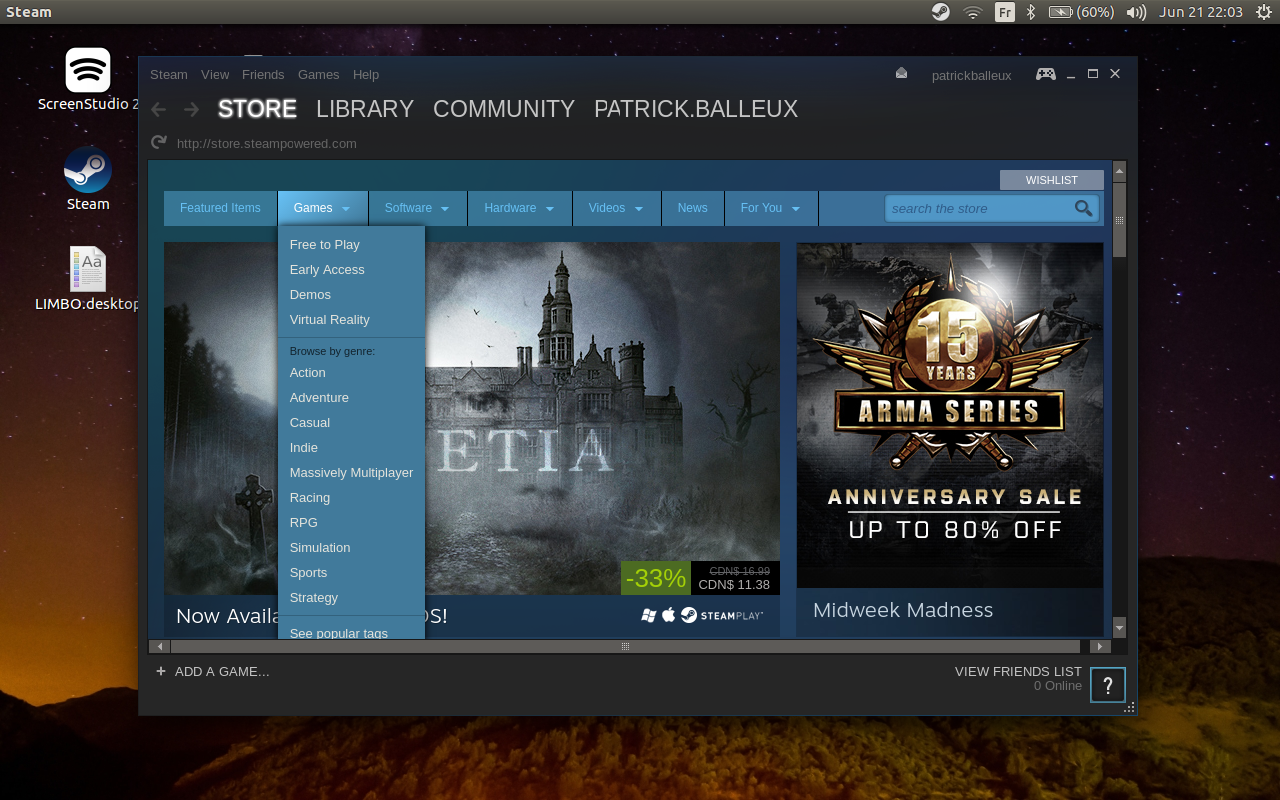
Running Steam on Ubuntu 16.04 (amd64)

If you try to install the Steam app to access great games on Ubuntu 16.04, you will find that it does not work out-of-the-box.


After searching the web for a few tips and tricks, I finally managed to make it run.


  • Install the i386 architecture (sudo apt-get install libc6:i386)
  • Install the default debian package from the Steam website (http://store.steampowered.com/about/)
  • Create a small script to launch Steam

Steam.sh
LD_PRELOAD='/usr/$LIB/libstdc++.so.6' DISPLAY=:0 steam
  • Make the script executable: chmod +x Steam.sh
  • Execute your script
It's sad that we need to apply this workaround until the Steam team does provide a better package, but it does work.


Wednesday, April 13, 2016

How to install Ubuntu on a MacBook

I do own an old MacBook 2009 at home.  It's age is showing up mostly with the latest version of OS X, El Capitan.

As an experiment, I wanted to try out Ubuntu on the MacBook.  I already use it on my old PC Laptop and it works like a charm.  So I took my already formated USB drive with Ubuntu 16.04 on it and booted the old Mac...  Nothing happened...


After some research on the web, I discovered that I had to create a bootable USB drive specifically for the Macbook.  I don't know why as as bootable drive is a bootable drive, but I followed these instructions:

https://help.ubuntu.com/community/How%20to%20install%20Ubuntu%20on%20MacBook%20using%20USB%20Stick

The key is to convert the ISO file into an IMG file.  Then you need to copy the IMG file to the USB drive using some strange command from a terminal in OS X.
sudo dd if=/path/to/downloaded.img of=/dev/diskN bs=1m
If you follow the instructions, step-by-step, it's really easy.  The convertion from ISO to IMG does take a few minutes and "burning" the IMG file onto your USB drive can take around 30 minutes.

Once that done, insert your USB drive into your Macbook and reboot.  Make sure to press and hold the ALT key to invoke the bootable options.  Select your USB drive when it shows up and Ubuntu should start booting.

I skipped the installation of a multi-boot selector like ReFit (http://refit.sourceforge.net/doc/c1s1_install.html).  I find it easier to select the OS to boot using the ALT key trick than install another custom tool.

Of course, I tried the Live version first to ensure that my hardware would be properly supported.  All was working as expected beside the fact that I had to install a propriatary driver for my wifi card.

After the initial testing, I went back to OS X to resize my hardrive partition to make some room for a 20 drive and a swap space.  You can do this by using the Disk Utils tools in OS X.  Then another reboot to return to the Live version of Ubuntu and start the installation process.

Usually, partitioning is done automatically by Ubuntu.  In this case, I had to create the partitions manually, select the proper mount point before completing the installation process.  30 minute later, I was rebooting the Macbook in Ubuntu, from the newly created partition.

The main issue I faced was that I needed again the Additional Drivers to enable my Wifi connection.  I had to manually copy the Debian package from the USB drive using "sudo dpkg...".  If I remember well, I had to install "dkms.deb" before installing the package drivers found in the USB installation drive.

Once I got the Wifi working, everything was working well.  Actually, it felt like a brand new computer as it was so fast and so smooth.  The only issue I am currently facing is using the iSight webcam with "ffmpeg".  The webcam does work with Cheese...  Oh yeah, make sure to install all updates from 16.04 before continuing...

I almost forgot, you need to install another package to enable your iSight webcam (search for isight in the repositories).  There is a small procedure to follow but it quite easy to follow.

The installation process was not as easy as on my PC Laptop, but considering the benefits, it was worth it. My Ubuntu MackBook is running perfectly, much better than under OS X.

By default, the computer is booting directly into Ubuntu.  When I want to switch to OS X, I reboot it while pressing the ALT key and then select the OS X partition.  For some strange reasons, I have to do a complete shutdown to reboot into the other OS.  Just restarting seems to keep the last OS used even when using the main partition using the ALT key.

If you feel that your old Macbook is good for the scrap, try it with Ubuntu first.  It does give a new live to your old pal.


Friday, October 23, 2015

Back to the future with Ubuntu

Finally, after a few months of fiddling with Windows 10, I got back to my good old Ubuntu desktop on my laptop.

It's not that my Windows 10 experience was a disaster, quite the contrary.  The new interface of Windows 10 was appealing and quite fun to use.  The novelty disappeared and today, I saw that Ubuntu 15.10 was out...  I could not resit the temptation.

Nevertheless, Windows 10 is not exactly what I was looking for.  My trackpad on my laptop was not properly supported, the laptop was a bit slow compared to Ubuntu and when trying apply some updates, something went wrong and updates could not be installed.

I don't know if I am plague by Microsoft but something always go wrong with Windows.  This time, they were minor issues but still, they are annoying.

So I downloaded the latest image of Ubuntu 15.10 (5 minutes), created a bootable USB stick (5 minutes) and installed it to replace Windows entirely (15 minutes).   In a matter of less than an hour, I was booting back into Ubuntu, ready to surf the wave again.

I was surprised to re-discover how smooth Ubuntu is.  Seriously, after having spent many weeks with Windows 10 on the laptop (Samsung RV515), I was accustomed to the speed of Windows 10.  Fast enough, not quite smooth on some occasions...

On the initial boot of Ubuntu 15.10,  I was expecting some delays as the operating system needs to finish some indexing of some sort.  No...  It was ready and faster than ever.  On this machine, Ubuntu is way smoother than Windows 10.  It does provide a better experience as apps are starting faster, switching between them is smoother...

Of course, I did the test with my iPhone 6 (iOS 9.1).  Ubuntu still support iOS 9.1, out-of-the-box as before.  If only syncing could work...

Have a nice day!


Saturday, September 19, 2015

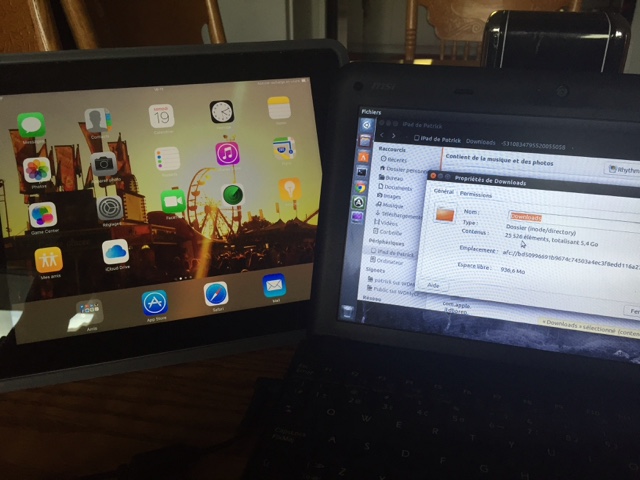
My iPad had lost 5.4 Gigs of free space

In the last few days, I found out that I was missing a lot of free space on my iPad 4.  Something like 2 gigs of free space was missing and I could not figure out why.

One of my kids had tried to download a few hefty games that saturated the available space to a point that I had no free space left at all.  Download were waiting and the AppStore was requesting that I free up some space to complete the downloads.

I rebooted, deleted some apps and everything seemed back to normal.  But after doing some math, it occurred to me that there was still a 2 gigs unaccounted for.


I eventually plugged my iPad 4 on my Ubuntu laptop, to see if the "Downloads" folder could be the stucked with old files in there.  I was surprised to discover that a lot of data was stored in that folder but that the total size was 5.4 gigs!


From Nautilus, I manually deleted those files and got back more than I expected.

So If you suspect that your iOS device is missing some free space, have a look at the download folder...

Thursday, August 13, 2015

From Ubuntu to Windows 10

Ubuntu has been my main operating system since 2004.  I've been a big fan and a long time user.  Of course, I had to work with Windows at work, but at home, I've always preferred Ubuntu over Windows.

My laptop came pre-installed with Windows 7 and it didn't take time for me to format everything and put my good old pal, Ubuntu.  It's not that I hate Microsoft, but I always felt that something was missing and I was more into figuring out what was going wrong than simply using the operating system.

Windows 7 was good even if over time, more and more issues were rising on my computer.  Drivers were hard to find for some devices and often, apps would not work or would crash unexpectedly.  Ubuntu was more convenient, had more power tools integrated and gave me access to some amazing apps to develop.

When Windows 8 came out, I didn't even bother trying it.  The new interface was confusing and made me look the other way.

Out of curiosity and because it is free, Windows 10 got my attention.  Since I had a genuine Windows 7 licence on my laptop, I decided to give it a try.  I wiped Ubuntu and reinstalled Windows 7 on my laptop.  Once completed, I downloaded the upgrade for Windows 10 and waited... and waited... and waited...

The upgrade process took several hours and I was getting prepared to wipe everything again to put back Ubuntu.  But everything worked as expected and Windows 10 was ready to run on my old laptop, 12 hours later.

I've been playing with my new toy for the last hours, discovering the Windows Store, the new apps that are now integrated into Windows 10 (Mail, Calendar, etc.).  I've installed Twitter, Facebook and played Candy Crush for a few minutes.

I must say:  Microsoft got it right this time!

It's a bit early to say that everything is perfect.  Sometimes, it feels a bit slow but that could be related to the age of my laptop (a Samsung RV515 with 4 Gigs of ram).  Not the most powerful beast but it does the job.

I am so impressed as I am writing this that I will give it a try for a few weeks.  The new look is gorgeous, apps do feel more integrated and there is surely a lot more to discover.

Even if I am currently quite happy about Windows 10, the infamous keyboard switching that has been plaguing me for ages is still present in Windows 10:  I do set my keyboard to support French Canadian and English (USA) as french is my native tongue.

For some reason that I cannot understand, I eventually end up with a French (France) keyboard appearing out of nowhere from time to time.  This has annoyed me since Windows XP, and I had to reconfigure my keyboard settings, again, just after a few minutes of usage.  

Let's assume that this was just a reminder that this is a Microsoft product and hope that the next few days will worth the upgrade... 

Yes, Windows 10 is a real upgrade this time.  I would not go back to Windows 7...  Maybe Ubuntu... Time will tell.


Saturday, February 7, 2015

Ubuntu Phone: Try it!

Did you know that you can try the new Ubuntu Phone on your Ubuntu computer?

Install the package "ubuntu-emulator" and you should be able to have a preview of the new kid in town.  In this video, I am showing how to install the emulator and where to follow the instructions.


I was able to make it run on my laptop, but had a few issues, probably related to my hardware.  Overall, I still could get a good idea of what to expect from the Ubuntu Phone.  I'm really looking forward for this new device when it comes to North America.

Have you tried it?  How was your experience?

Wednesday, November 5, 2014

Love iOS, Android? Why not Ubuntu?

With the release of each iOS/Android version, users around the world will get the upgrading fever as soon as they hear the news. Some will even install the beta version to get the latest and greatest before everyone else...


How come it's not the same for Windows? Sure, there are a few enthusiasts around the world who will go the extra mile to get their hands on the beta version, but it's far from a general worldwide phenomenon.


Basically, some won't want to upgrade. Most will wait to buy a new PC. Others will download an illegal copy, taking the risk of exposing their personal stuff to the "World Wild Web"...


As those Windows users are probably also iOS and Android users, they should crave for the next Windows... And this is not the case.

Assuming that Windows users were able to adapt to the new environments proposed by iOS and Android, could they consider the fact that an alternative to Windows would be as useful and fun on their PC? Have they heard about Ubuntu (and friends)?


They will hack and crack MS Office to get it free, they will install many tools to get Windows more useful, they will fight against viruses and adwares and spywares with the latest anti-virus available. Managing a Windows PC does require a lot of personal time.

With iOS or Android, you simply do nothing. Load it up, upgrade all your apps from the store. Get free OS upgrades when available and enjoy your device without thinking about it. What if I would tell you that you can get the same experience with Ubuntu?

Don't believe me? Try it out for yourself as you can download Ubuntu for free (ubuntu.com)

Nothing illegal here. It's free simply because it is open source stuff.

Don't like Ubuntu? Try out one of its derivatives like Mint or Kubuntu. The choice is yours.

Maybe it's time to start using your computer instead of managing it. Get Ubuntu!

Saturday, October 11, 2014

Netflix is working on Ubuntu!

This week, Ubuntu users were really happy.  Netflix now works natively on Ubuntu just by using the latest version of Chrome!

Yep!  This is not the Year-of-the-Linux-Desktop, but it's a great news.


See a preview on my Youtube channel:


Sunday, October 5, 2014

Windows 10, late to the party...

Microsoft has released a preview of its next Windows this week: Windows 10.  Lots of goodies and as usual, moving back to what was working well in previous versions...

We've all seen Microsoft pushing new features and reverting to a more classic view in the following release of Windows. With Windows 10, we're moving back to something more like Windows 7 while keeping a bit of Windows 8.


I've watched the preview video on Windows 10 on YouTube and my first impression revolved around this: I've been able to do this in Ubuntu for the last 10 years...


I'm not saying that Windows 10 is copying Ubuntu. I'm just saying that Windows 10 is really late to the party.

  • Snapping windows:  Been there for ages in Ubuntu and other distros
  • Multi-Desktop views:  Been there for the last decade in Ubuntu (and other distros)
  • Online Store: Repositories were laughed at 10 years ago by the Windows community
  • Apps can be run in a resizeable window view:  Isn't it what as been possible in all OSes for the last 20 years?
  • Community involvement:  Does open source ring-a-bell?
  • Start menu "Search is back":  As in Windows 7, as in Unity?


This is a tech preview of Windows 10 and as stated in the video, it's an unfinished product.  I do feel that Windows, since Windows XP, is an overall unfinished product,


Maybe Windows 10 will finally nail it this time.  Until then, I'll keep using Ubuntu as my main operating system.  At least, upgrading to the next release is free...


Patrick Balleux

Sunday, September 7, 2014

Are you using an illegal copy of Windows?

Why do people will install an illegal copy of Windows on their computer?  I'm not talking about the legal aspect as it is wrong to use an unpaid version of any software but about the troubles they get into just to make it work.

As everyone is shouting about privacy issues with social networks, smartphones and the web in general, why would someone take the risk of introducing the biggest Trojan Horse ever known, an illegal copy of Windows.

A downloaded copy may contains more than expected like key loggers, viruses or spywares.  SerialKey generators are even worse and they too may get you more than a working copy of Windows.  Then you will have to do the "hunt-for-drivers" and hoping that your hardware will be supported as it was with the original copy that came with your PC.


The process of getting a fully functional version of Windows may end up in a privacy nightmare that you really do not want to experience.  Let's not forget that once Windows is installed, many users will repeat the process with MS Office, Photoshop and other great softwares that are the reference in their field.

A bit of story time...

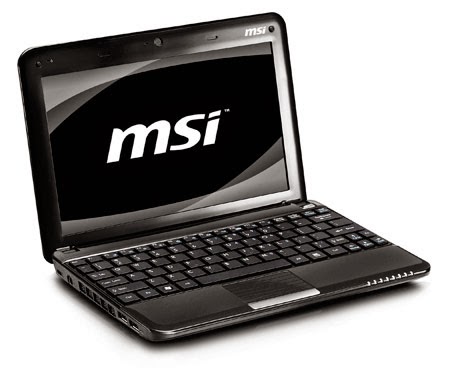
At home, we have three laptops that came with Windows originally.  Mine is a Samsung RV515 and came pre-installed with Windows 7 Home Edition.  There is also an old MSI netbook, pre-installed with Windows XP and a more recent laptop, an Asus, that one of my step-daughter got from her dad.  It was pre-installed originally with Windows 7, "upgraded" to Windows 8.

The MSI netbook got into many troubles over the years and was on life support.  Actually, we were considering trashing the little devil as it became unstable and deadly slow.  We did not know how to reformat the machine as there is no CD/DVD on the device and we just dont remember if we had some way to re-install Windows XP on it.

The Asus laptop was used and originally came pre-installed with Windows 7.  My step-daughter's dad had installed Windows 8 on it and the laptop was not handling the latest version of Windows very well.  Eventually, she asked if she could have Windows 7 instead.  Technically, it was just putting back the original operating system which was already paid for this machine.  The issue was that we did not have the original installation disk nor the original serial number...  So a friend helped out by providing an OEM copy of Windows 7 but we were stuck on the activation process that would not work.  To make a long story short, my step-daughter (an 11 year-old) became tired of Windows constantly asking to activate it.


For the MSI and the Asus, we were stuck in a dead-end and I was not willing to use any software that would crack and activate (probably) Windows.  There are too many security risks involved and too many issues that could arise.

You guessed it, I proposed installing Ubuntu 14.04...

My girlfriend was a bit scared of moving into unknown territories with her MSI and my step-daughter did not want to lose her "Plants versus Zombies" game that she had bought for the Asus laptop.

The Samsung laptop

This is my personal laptop.  Windows 7 was well supported on it, but I wanted Ubuntu 14.04 for development purpose.  Nothing special, move along...

The MSI netbook

It was slow, unstable, freezing all the time.  Battery was dead as it could not hold a charge more than 5 minutes.  My girlfriend agreed that as a last and final step, I could format the hard disk and install Ubuntu 14.04 on it as "an experiment" before trashing the device.

After the installation process completed, 45 minutes later, the MSI booted up into Ubuntu...  It was running smoothly and very well.  Then we realized that Ubuntu was reporting that the battery charge was good for more than 1 hour...  Strange as we knew that it could not hold the charge for more than 5 minutes...

My girlfriend and I took a tour of Ubuntu where I was showing her how it was working, where Firefox was and so on...  She actually liked it as it was simple and easy.  She was impressed to discover that her netbook was running so smooth and was actually feeling like a brand new machine.


Surprise, surprise!  We also discovered that Ubuntu was not lying.  The battery was in fact able to hold the charge for more than an hour.

The Asus laptop

Yesterday, as of writing this post, my step-daughter agreed to try out Ubuntu 14.04 on her laptop.  Since Windows was so annoying, Avast wanted to update all the time and nothing was working smoothly, why not give it a try.  As I explained to her, she's 11, it's a bit like a Mac but not the same.

She is using her laptop to do her homework from school, playing "Plants versus Zombies" and browsing the web.  Nothing fancy, she just wanted her laptop to work.  The installation process took overall an hour, including making a small backup of her files on an external drive.  Everything was supported "out-of-the-box' including the webcam that never worked in Windows...


We spent the afternoon together discovering her "new' computer.  She was simply amazed to find out how easy it was to use.  She loved the Ubuntu Software Centre as it is like her iPod App Store.  Everything she needed was already installed and functional.  She was actually expecting that we had to hunt for hardware drivers, download a few softwares so she could do her homework and that we had to configure many things.  In her mind, the laptop should have been ready only on the next day, after many hours of downloading, installing, updating...  Nope!  It was ready, after only an hour.

As a bonus, we installed PlayOnLinux to try to run her game "Plants versus Zombies".  As I explained to her, there was a good chance that it would not work.  And... It worked perfectly!

Her comments:

  • Ubuntu is looks great
  • It's so fast and smooth
  • It's like a Mac, but free
  • The "AppStore" is great, there are a lot of free games 
  • Everything is updated, all apps, all games... Like her iPod
  • There is so much to discover... It's so cool!
In the end...


Everyone is happy!  I always liked Ubuntu so for me, it's not a surprise.  My girlfriend has a "brand new" netbook and she loves it.  My step-daughter now has a fully functional laptop as it should have been and she can finally do her stuff.

Struggling with your Windows?  Maybe it's time to try something else, maybe it's time for Ubuntu!

Go get it: http://www.ubuntu.com
Wanna see Ubuntu in action? Check out my Youtube channel: http://youtube.com/patrickballeux


Saturday, August 30, 2014

How to export your iPhone music library without iTunes

The iPhone is a great device but getting your iTunes purchases out of the device can be a pain when you are not relying on iTunes.

iTunes is available on Windows and OSX.  But what about Ubuntu?  Here a tutorial to show you how to do it using MusicBrainz Picard app (also available on other OSes).


Wednesday, August 27, 2014

Connecting to Twitter, Facebook or Google with Ubuntu

Ubuntu is a great operating system.  One neat feature is being able to connect to your online social network account.  See the tutorial on my Youtube channel:


Have a great day!