Showing posts with label google. Show all posts

Sunday, January 20, 2019

Install Ubuntu on Lenovo Tablet MIIX 300

If you have the Lenovo MIIX 300 tablet, you may be in luck if you want to install Ubuntu on this device.


I got mine a few years ago at Best Buy for really cheap as it was an opened box.  It came pre-installed with Windows 10 32 bits edition.  The table come with a detachable keyboard so you can use it as a small laptop or a regular tablet.

My main issue with the Lenovo MIIX 300 was the 32 bits installation of Windows.  More and more apps are only supporting the 64 bits version so there is less and less apps/games that I can install on this neat device.

Last year, I did try to install Ubuntu on it without much success.  But with the latest version,  Ubuntu 18.10, it's almost perfect.  Yep, there is a few hurdles but nothing impossible.

The main issues:
  • Sound does not work out-of-the-box but it's easy to fix
  • Display orientation is wrong, but there is a workaround
  • From time to time, the device will freeze completely
    • Press POWER button 10 seconds to shutdown See Note...
  • Bluetooth does not work  Bluetooth work is updating to 19.04
  • Webcam does not work
NOTE:  Seems that adding this line to /etc/default/grub is preventing freezing: 


```/etc/default/grub
GRUB_CMDLINE_LINUX_DEFAULT="quiet splash acpi_osi="
```
and then you have to run:
```
$ sudo update-grub

Read the complete post: https://bugs.launchpad.net/ubuntu/+source/linux/+bug/1784152

Note 2:  The grub setting did not work.  I took a longer time but it eventually froze again.  But I discovered that the tablet is not frozen just the touch interface.  Doing a reload of the hid_multitouch module fixes the issue.

> sudo rmmod hid_multitouch
> sudo modprobe hid_multitouch


The issue now is figuring a way to reload the module just without the physical keyboard.

Note 3: Updating to the latest developpement version of Ubuntu (19.04) has enabled the Bluetooth device.  I was able to use my Bluetooth earbuds with it.

Step 1

Download the desktop version of Ubuntu.  The default flavor does work but I found that Ubuntu Budgie works better as is it a bit lighter.  The KDE flavor didn't work.

You'll also need a special file to boot from the USB drive, on with we will create the boot disk.

Download the bootia32.efi file.  This is required on this machine.  Here's a link on GitHub!

Also, download the driver files for the sound card as by default, it does not work.  Here's the link on GitHub!

Get a USB key drive having at least 2+ Gigs available.  Create your bootable USB drive using Rufus in Windows.  Make sure to select the GPT scheme for the boot partition.

If you are already on Ubuntu, here's how to do it:
  1. Insert your USB key on your computer.  
  2. GParted is required on this machine.  Install it...
  3. In GParted, select your device and "Create a partition table" from the menu
    1. Select the format as GPT, and not MSDOS
    2. Set the size as 2 MB
    3. This will wipe your USB drive
  4. Once done, create a FAT 32 partition having at least 2 Gigs 
  5. Mount the ISO image so you'll be able to copy the files from the ISO archive.
    1. From the console: sudo mount -o loop ubuntu-18.10.x-desktop-amd64.iso /mnt/somefolder
  6. Open Nautilus, and press CTRL-H to show all hidden file from the mounted archive and copy everything into the FAT 32 partition on your USB drive.
  7. Once done, copy the bootia32.efi file into [USB Drive]/BOOT/EFI
    1. This is mandatory!
  8. Also, copy the audio drivers at the root of your USB drive as they will be needed later.
You should be all set now to boot into Ubunbtu.

Step 2

By default, your tablet disc is encrypted using "Safe Boot".  You'll need to go into the settings of Windows to deactivate it.  You'll also need to deactivate the encryption in the "Boot" manager.  This is required to be able to boot from another device and interact with the hard disc.

If I remember well, this process has to be done in Windows first.  It takes a few hours to complete.  Once done, you need to boot into the "Boot" section.  When rebooting, while seeing the Lenovo logo, press "Fn"+2 (F2).  You get the configuration screen for the machine and you can disable the Safe Boot from there.

Careful with this step.  Be patient and do the whole process before doing anything else.

In the end, you should be able to boot into Windows with an unencryted hard drive.

Step 3

This is the moment of truth.  Plug your tablet to the keyboard as we need the USB ports.  Insert your USB boot drive and reboot your device.
  1. You can do it be going into the recover section of Windows 10
  2. You can also for the boot device pressing "Fn"+"+" (F12) on the keyboard.
You all steps have been followed correctly you should see your USB boot disk in the selection.  Boot with it and wait around 30 seconds.

Eventually, you'll get the Ubuntu Desktop, in Portrait mode.  Rotation does work, but it's not in sync with the physical state of the device.  The fun begins...

Step 4

For some reason, the rotation does not work correctly.  In Landscape, the desktop will be rotated clockwise in Portrait mode.  I've tried a few things to fix it but I eventually removed the support of the gyroscope:  sudo apt-get remove iio-sensor-proxy

Most of the time, I use my table in Landscape anyway.  You<ll have to do this when installed also.

Once removed, find the Desktop settings and select the proper orientation.  It can be done also using the command line: xrandr -o right (or left if it's in the wrong orientation).

On the final setup, I have created keyboard shortcuts to change the orientation as needed using the xrandr command.

Once your display shows in the proper orientation, you can enabled your WIFI connection as it is supported out-of-the-box.

Play and explore it.  When ready, you can install on your hard disk.

Step 5

You can install Ubuntu along side of Windows without any problems.  The main issue is that you need to reboot and press F12  to boot from the Ubuntu partition.  Also, space on the hard disk is limited at 64 Gigs.  Windows 10 does take around 30 Gigs of it with apps...

When creating your administrator user, set auto-login, it is really useful.

My initial tests were along Windows 10.  In the end, I did chose to wipe Windows 10 completely and only have Ubuntu Budgie installed.   I now have 58 Gigs of free space ;)

So install as you you wish.  I really liked Windows 10, but being stuck with the 32 bits version was a pain.

Step 6 (Once installed)

At this step, you should be able to boot into Ubuntu.  Again, you'll have to struggle with the display orientation (see Step 4).

Connect to your WIFI and update with the latest packages.  I've also enabled the developers packages.  It seems to be a bit more stable with those.

Remember the UCM file for the sound driver?  You need to copy all the sub-folders into /usr/share/alsa/ucm folder as root.

Once done, in a console, execute pulseaudio -k

You should have audio now.

For some reason, the Pulseaudio does not detect when plugging headphones so you need to do it manually to switch from Speakers to Headphones.  Keep a shortcut on the audio settings on your desktop.

Forget about the Bluetooth headphones as the Bluetooth device does not work. (At least at the moment of writing this post)

Step 7 (Ubuntu Budgie)

The default flavor of Ubuntu does support a virtual keyboard out-of-the-box but it does not work well.  With Budgie, there is not even an on-screen keyboard popping up.  But do not fear, there is a neat fix.

Install the "OnBoard" package from the Software setup.  You can use it to popup when needed from the settings and customise it as needed.  

Conclusion

You should now have a fully working Ubuntu Tablet now.  There is a few quirks here and there.  Some 3D games does not work.  You'll need the physical keyboard to play some games and you'll be missing apps and games available on iOS/Android/Windows but it will be fun.

I use Chrome from Google as it does support the touch interface, it works with Netflix and can create Web Apps using the menu "More Tools" - "Create Shortcut"

If the freezing bug could be fixed, it would be almost perfect for a real Linux tablet.


Sunday, October 22, 2017

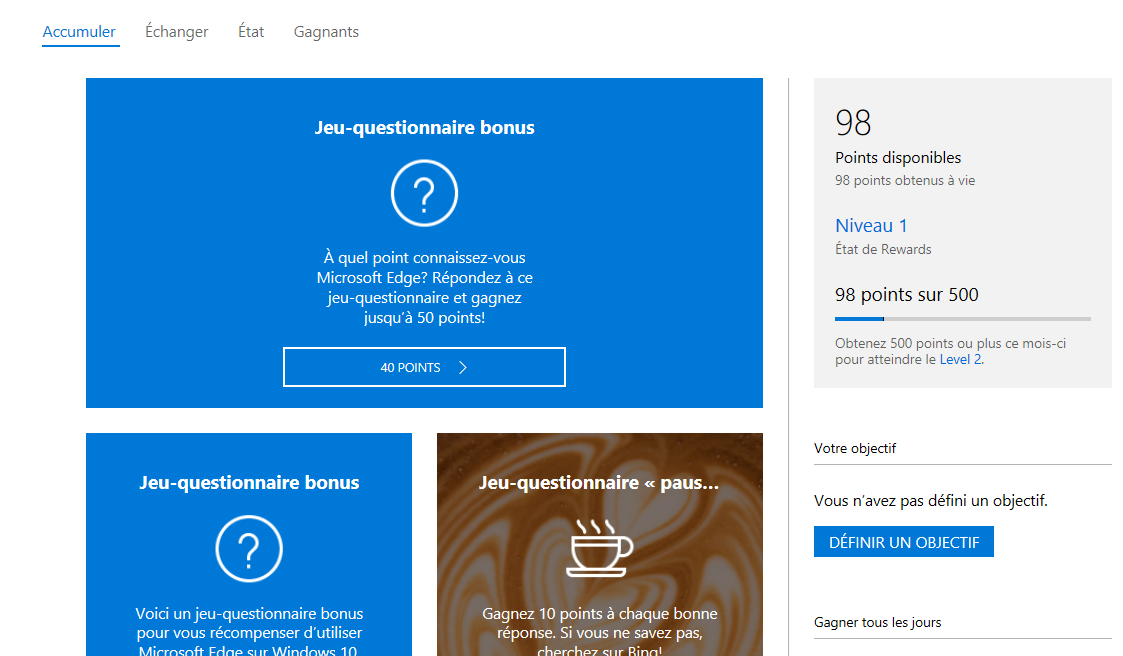
Microsoft rewards for using Bing

I don't know if it's new from Microsoft but I've been offered reward points for using Bing search engine from Microsoft.


It is actually more than using Bing.  You can get points for buying stuff in the Microsoft App Store, renting movies, etc...  They say that you'll get 1 point for each 1$ spent.  Using Bing, you be awarded 30 points per day, per search if you meet some prerequisites.


What's the catch?  There seems to be none or at least it it the same as Google's reward program where you answer some questionnaires in exchange for credits on the Google Play Store.


With Microsoft, you can exchange points for credits on your Xbox Live account, Skype account or send them to the Special Olympics, Care, First, or other helping associations.

You can even enter some contests to win an Xbox One S or a Surface Pro.

For more info, log into your Microsoft account and see the rewards section: https://account.microsoft.com/rewards

Tell me what you think...

Sunday, October 23, 2016

Best of iOS, Android and Windows 10

When you are looking to buy a tablet, there are so many choices available.  I personally own an iPad 4 (iOS), an Asus Memo 10 (Android) and recently the RCA Cambio (Win10).

I can safely assume that I have enough user experience with all three major operating systems on mobile devices.  With iOS, I've been a user starting with the iPhone 3GS and I do appreciate the Apple ecosystem.  I also got my hands on on several Android devices mainly tablets.  Windows 10 is a bit new to me as I always used Ubuntu on my computer.

My main factor when choosing a mobile device is the experience.  I do not care about the CPU speed or device weight.  All that matters is the user experience with the device and how well it will integrate into my daily tasks.

Let's compare the three of them from my point of view...

Apps

The diversity of available apps is amazing on all of them.  iOS and Android do have a few featured apps that is not available on Windows 10 but on the other hand, Windows 10 being a full operating system, you do have access to more apps and software.

I would consider the three operating system on par, with a slight advantage to iOS for providing great apps like GarageBand or iMovie out-of-the-box.

Store

The Apple AppStore, Google Play and Microsoft Store are great.  They do provide a way to search easily for an app, a movie or anything else.  I would consider that Google Play and Microsoft have a slight advantage over Apple and they to provide more suggestions and searching for something is easier...

Online accounts

Interacting with your online accounts is a must these days.  iOS and Android are clear winners on that level but I can also say that Windows 10 is not far behind.  The notifications are well implemented on all three OSes, but there are a few missing players on Windows 10 (Side note: Instagram finally made it on Win10 last week...)

Online files, movies, music

Accessing data, movies and music on a remote storage is something that Windows 10 can handle without any issues.  In second, Android does have a few apps that do the job and in the last place, iOS where you need a specific app to reach those file.

Fluidity

One of the worst thing for me is when the device is lagging.  You start an app and then you have to wait for it to be ready...  only to find out that it does lag and you have to wait...

iOS is almost flawless on that level.  Even my old iPad 4 is still fluid after many upgrades and whatever app I may used.  In second, I would choose Windows 10 over Android.  Surprisingly, on my cheap RCA Cambio tablet, Windows 10 is fluid and smooth.  The only lagging experienced was with some heaving 3D games pushing the limits of the hardware.  With Android, I've always been disappointed had all devices I've had or tried, the apps are slow to open, the keyboard is often unresponsive as I type.

Maybe it's just me, but Android is far behind in terms of fluidity, even with a 300$ tablet...

Updates

Not much to say here: iOS and Windows 10 are clear winners with frequent updates.  As for Android, it all depends on the brand you got and it's has safe as the weather forecast.  I think that an old Nexus 7 is still being updated by Google but it was so slow that I gave it to one of my kids...

Integration

When speaking about integration, I mean interacting with your life.  iOS is amazing on that level has you can even copy and paste from your iPhone to your MacBook (if you have the latest...).  Start browsing on your iPad and continue on your iPhone later one.  Apple has made an amazing job at making it work, easily.

Android does offer a great alternative with Chrome and ChromeCast.  There is no true ecosystem as on a computer, you have Google Chrome mainly.  So it's a matter of integrating your Google account more than having dedicated devices.

Windows 10 does fall behind as there is no serious integration between devices and computers.  Of course, since it's Windows, you can actually installed whatever you need to make things work.

In the end...

Overall, they are all great, depending on what you want to do.

  • iOS: Amazing apps for media creation, best ecosystem, long term updates
  • Windows 10:  Smooth and fun.  On a tablet, it's the best of both world.
  • Android:  It's Google!  If you live by Google, this is the way to go.

Personally, I would recommend iOS for casual stuff and when it should just work.  For more serious stuff like working on douments or creating softwares, Windows 10 is the way to go.

I do like Android, but it has often disappointed me to a point where I won't consider buying another Android device again.  iOS and Windows 10 are sure bets in my mind as opposed to Android.


Saturday, October 15, 2016

Google Pixel against the exploding Galaxy Note 7: Best timing ever!

For the last few weeks, we heard about the exploding Samsung's phone, the Note 7.  It's one of the worst case scenario a company can face.  It's bad for Samsung, it's bad for the industry and it's bad for the consumer.

Currently, Samsung is the best alternative to Apple.  Google has it's Nexus/Pixel line but consumers are always comparing the Galaxy's with the iPhone.  There is a good chance, in the next few months, that consumers will shift to another brand for their mobile device simply because of this bad event.

Some will consider Apple's product, some will consider the next best in line.  Since last week, all we hear, all we see is the new Google's Pixel phone.  For Google, the timing could not have been better.  The Android fans won't hesitate to move to the Pixel for this  reason:  The affordable devices may explode, so a pricier device should be safe.

We all know that this reasoning is total BS, but deep in the subconscious mind, that how it will sound.  This false impression of security toward a pricier device will help Google's share on the market.

There is still something strange about this case:  How come Samsung never saw this coming?  I mean, they have qualified engineers, they have the knowledge and the experience with mobile devices and batteries...  It is a bit awkward that such a knowledgeable company cannot figure out what is happening.

Some may even see a conspiracy as I said earlier, the timing could not have been better for Google and the Pixel.  I won't go in that direction as it is pure speculation, but I still wonder.

Read your news feed and all you see is about the new iPhone 7, the exploding Samsung's Note 7 and the amazing new Google's Pixel...


Tuesday, May 17, 2016

Google Spaces just launched...

Yesterday, Google Spaces was available on my iPad and my iPhone.  I downloaded the new thing to try it out and explore the features.

As you may guess, it's a bit lonely in space... (Pun intended).  Basically, you create a "space" about your favourite subject and post links relevent to the theme.  I've created one for ScreenStudio and posted a few links.


After a few posts, I then realized that this is Pinterest à la Google.  You can post (pin) all kinds of links and comments.  You can invite your friends and family to join your own personal space as the only way to join seems to be sharing the "secret" link.  I still don't know if Spaces is meant to create small and personal communities or to be a central point for all the stuff that you are interested in.

On iOS, the app does look nice but lacks the tablet format support.  I will go explore http://spaces.google.com from my computer to see how it does behave on a large display.

If you want to explore a bit, here's the link to the ScreenStudio space: https://goo.gl/spaces/oLeXGyJbHutGwX5v5

More to come...

Tuesday, February 16, 2016

Record your screen on an Asus Memo FHD 10

In a previous post, I was showing you how to root your Asus Memo FHD 10 tablet.  This will be required if you want to record the display of your tablet.


Once that is done, you'll be able to screencast your apps into videos in no time...  Actually not.  Even if the tablet is rooted, almost none of the screen recorder will work on the Asus Memo 10.  That's a really sad situation and nothing will change as Asus is not providing any update for this device anymore.


There is one app that is working...  SCR Pro!  A while ago it was listed in the Google Play store but for some strange reasons, it was pull-out by Google.  The author, iwobanas, created a thread to share his app for free on XDA (http://forum.xda-developers.com/showthread.php?t=2422061).  I had already bought the app while it was listed on the Google Play store so I was happy to retrieve this amazing recorder when I had to reset my tablet.


The video quality is really good and you can even play some Minecraft while recording your screen.  Optionally, your webcam can be display as an overlay.  Internal sound does not seem to work but the microphone does.


Give it a try and if you like SCR Pro, please make a donation to the author.

You can download SCR Pro for free here: http://www.scr-screen-recorder.com/


Saturday, August 1, 2015

Chromecast versus Apple TV

I've been a long time Apple  user.  I do own the iPhone, the iPad and of course, the Apple TV 2.  My girlfriend bought the Apple TV 3 a while ago before we started living together.  In our home, we have mostly Apple products and a few PC with Ubuntu installed.

Even if I do prefer Apple products, I do also have an Android Tablet for development purpose, the Asus Memo FHD 10.  It's a neat device that I like to thinker with.

As I wanted to be able to stream movies on our TV's bedroom, this was a great opportunity to get a new toy: the Google's Chromecast.  One Apple TV is hooked in the living room and the other one is the kid's bedroom.  As my main usage for another streaming device was only to watch a few movies one in a while, the Chromecast was a good choice, considering the low price of 40$.

How does it compare with the Apple TV?  It does the job at streaming movies on the TV and that's about it.

I wasn't expecting much more than that for this price.  The Apple TV is around 100$ and the Roku 3 is selling at 120$ (Canadian).

So how does the Chromecast compare with the Apple TV?

Pros:

  1. It's small, really small
  2. It's can be hooked directly in the USB TV port, thus no need for an external power outlet
  3. It's easy to use
  4. Image quality is good, at least on my bedroom TV
Cons:

  1. There is no remote.  You need your phone/tablet to interact with it
  2. There are not apps.  The device is driven by the apps on your phone/tablet
  3. Not all apps are supporting Chromecast
  4. You cannot play your favorite games like on iOS/AppleTV.  
  5. You need specific apps to stream photos/videos on your TV
  6. Initial setup can take more than 5 minutes... 

Overall, the Chromecast is a great little device.  Having to search for compatible apps is a bit annoying.  Major apps do support it like Youtube, Netflix or Google Movie.  But if you want to show a photo from your Facebook profile on the TV set or mirror a game on the big screen, you'll be facing some issues.

The thing is that iOS/AppleTV are meant to work together.  The support for Airplay and AirPlay Mirroring is native in iOS, making the streaming process so easy, you take it for granted.

On Android, it's not as easy.  It kind of me reming the first days of the Apple TV.  It took a few trials and errors to find the proper app to stream movies from my NAS to the Chromecast.  Sometimes, movies in MP4 format will not work with the Chromecast even if they are compatible with the Apple TV.

If you are on a limited budget, the Chromecast is great.  But if you can manage for a more expensive device, you should get the Apple TV or the Roku 3 as you will get more for your money.

You get what you pay for: 40$, a remote display...

Saturday, September 6, 2014

Get free money on Android: Google Opinion Rewards

If you have an Android device, there is an easy way to earn a bit of money to spend on the Google Play Store.  Google has released an app called "Google Opinion Rewards".


It's a small app that will send you small surveys to answer in exchange for some credits in the Google Play Store.  Surveys are small and the payout is quite interesting.  Since I have installed it on my Asus Memo FHD 10, a few months ago, I had to answer around 10 surveys and was able to get around 5$ to spend in the store.


It's not much, but the payout always depends on the survey and your answers.  Sometimes you'll get $0.16 and other time $0.75.  Overall, you can get almost a free app or game each month.

Here's the link: Google Opinion Rewards - Android Apps on Google Play

Since the app is provided by Google, it feels a bit safer.

Leave comments about your own experience with Google Opinion Rewards...